Comments
To ensure transparency and collaboration within your team, the application includes a commenting system. We encourage users to leave comments whenever changes are made to scopes, rules, or optimization settings so that the reasoning behind these changes is preserved for all users.
How to use comments
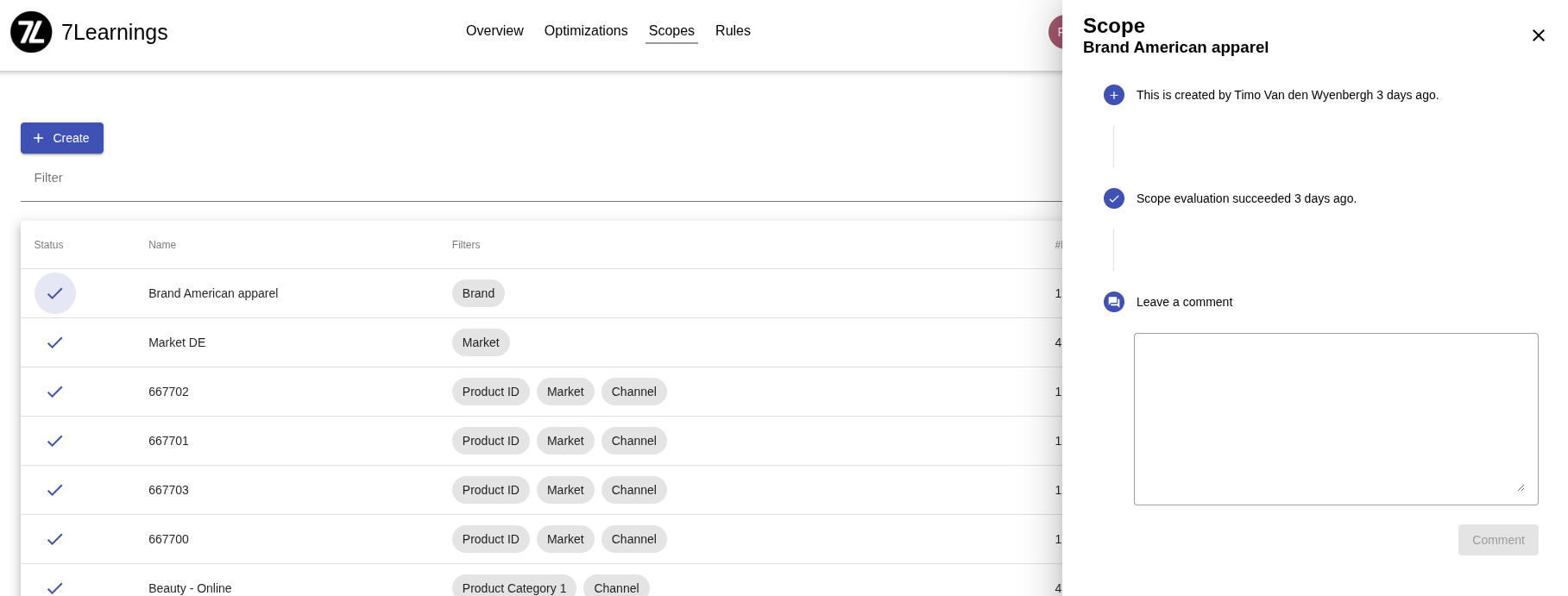
-
Access the Timeline: Click on the Status Icon (e.g. a checkmark, error, or progress spinner) which opens the detail view containing the event timeline.
-
View Collaboration: The timeline displays all automated system events and manual user actions in chronological order.
-
Leave a Comment: At the bottom of the timeline, you will find a "Leave a comment" section.
-
Type your message into the text area.
-
Click Comment (or press Ctrl + Enter) to post.
-
Notifications: If there are new, unread comments from other team members, a red notification badge will appear over the status icon on the main table.
-
Editing Comments: If you need to correct information, you can click the Edit icon on your own comments to update the text or attachments.
Why comment?
Commenting makes sense for multiple reasons:
- Audit Trail: Document why a specific price floor was raised or why a scope was narrowed.
- Team Alignment: Inform colleagues if a rule change is temporary (e.g., for a weekend flash sale).
- Troubleshooting: Link external data or reports that justify specific steering decisions.