New Optimization
This section describes how to create a new optimization in our app.
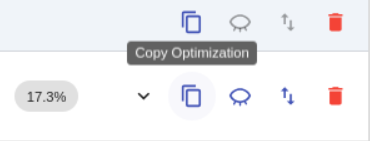
Option 1: Copy from old optimization You can create optimizations from an existing optimization by clicking the "Copy Optimization" button. This will copy:
- The scopes of the old optimization
- The rules of the old optimization
- The targets of the old optimization
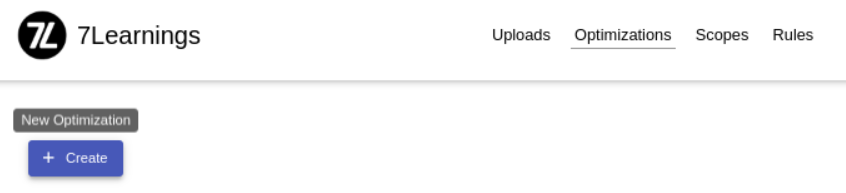
Option 2: Create new optimization You can create a new optimization by clicking on the "+ Create" button in the optimization section. This will open a new form for creating an optimization.
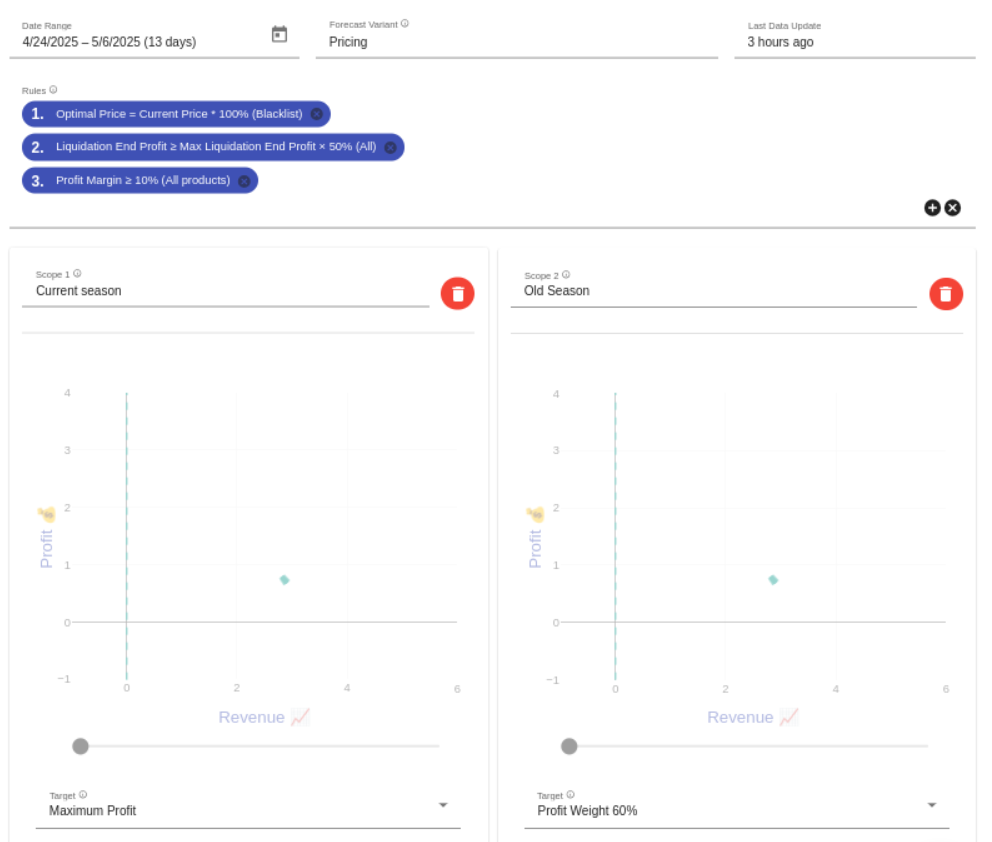
Optimization Configuration The optimization for lets you configure the following parameters:
- Name: A recognizable description for your optimization. You can change the name later on by clicking on the name in the optimization list
- Date Range: Select which days you would like to make an optimization for. Set automatically to the current date until the last available date of the forecast
- Forecast Variant: Your 7L Data Scientist can create additional forecast variants for special purposes like 20% voucher campaigns on all products
- Last Data Update: Indication when we last updated your forecast
- Rules: New rules can be set-up in the Rules section of the front-end and added to an optimization here. Rules can be prioritized with drag and drop. Rule #1 has the highest priority
- Scopes: Combination of market, channel and product_id that you want to use for your target setting
- Target: Please decide which target type we should persist when we use the optimization settings next time