Rules
Using Rules, you can set specific constraints on the options you want to allow. These constraints help filter out any unsuitable options, ensuring that only those that meet your criteria are considered. You can apply optimization rules at a scope level. For example, if you want to ensure that all discounts are below 50%, you can create the rule "Discounts <= 0.5."
Create Optimization Rules
To create a new optimization rule or modify an existing one, navigate to the Rules tab. Click on "Create," and you will be able to choose from a list of predefined rule templates. Once you've selected the rule, define its value, specify the scope it should apply to, and click "Create."
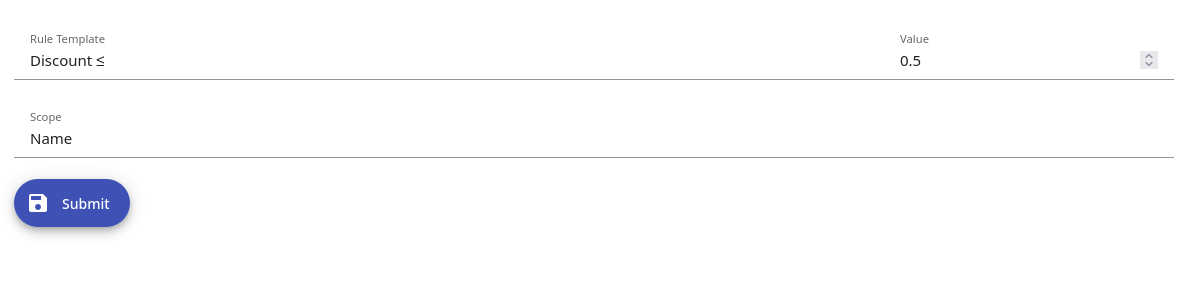
After creation, you'll be redirected back to the Rules tab, where you can optionally add a comment. From this tab, you can always view, modify, or delete your existing rules.
Use Optimization Rules
When you create a new optimization, you can select from the previously created rules to apply them.

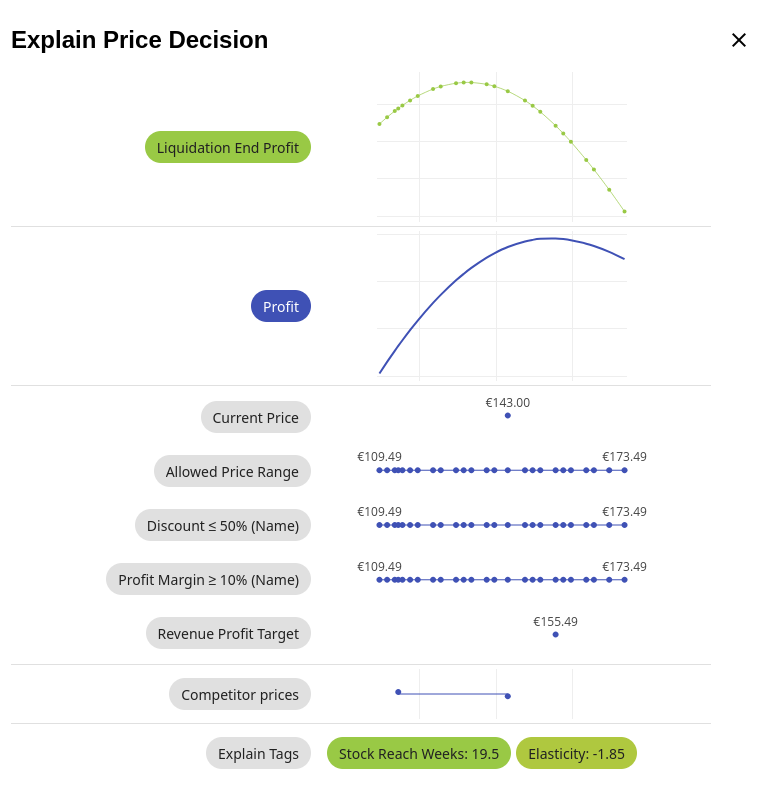
Once the optimization is complete, you can analyze the effect of each rule on the price options for various market, channel, and product combinations. To do this, go to the optimization, and under the "Pricing+ -> Explain" column, click on the product you are interested in. This will display how each rule impacts the price options.
Additional Details
If no price option satisfies a specific rule that was selected during optimization, the closest price option to the rule's threshold will be selected as a fallback. It is important to note that the order of the rules determines their priority. The first rule is applied first, followed by the second, and so on.
Conclusion
Optimization rules allow you to set constraints on price options, ensuring that only those meeting your criteria are considered. As a result, all unsuitable price options are automatically filtered out.